Discord on Linux Wayland: Fixing Away Detection (Auto-Idle)
Discord never goes Idle on Linux Wayland? Force native Wayland mode with Ozone flags in your desktop entry to restore auto-idle and smartphone push notifications.

If you use Discord on Linux with a Wayland session, you may have noticed some weird behavior as I did: my status never switched to Idle when I walked away from the keyboard. I could leave the machine untouched for an hour and come back to a green dot still showing me as Online.
For a while I just ignored it. Then I realized the actual consequence: Discord’s smartphone app only pushes notifications to your phone when the desktop client is considered away. If the idle detection is broken, your phone never gets notified because Discord thinks you’re still sitting at your desk. That’s the real problem — not just a cosmetic status icon.
Why This Happens on Wayland
Discord is an Electron app, and Electron has had a long and bumpy road with Wayland. By default, most Electron-based apps — including Discord — still launch in XWayland compatibility mode even on a pure Wayland session. XWayland is a translation layer that lets X11 apps run under Wayland, but it comes with trade-offs.
One of those trade-offs is that idle detection doesn’t work the way it should. Under XWayland, Discord can’t reliably detect user inactivity through the Wayland idle protocol — so it never triggers the auto-idle transition. The fix is straightforward once you know the root cause: tell Discord to run natively on Wayland using Chromium’s Ozone platform flags.
The Fix: Ozone Platform Flags
The flags you need are:
1

--enable-features=UseOzonePlatform --ozone-platform=wayland
These instruct Chromium (and by extension Electron) to use the native Wayland backend instead of falling back to XWayland. A working launch command looks like:
1

/usr/bin/discord --enable-features=UseOzonePlatform --ozone-platform=wayland
You could test this by running it once in a terminal first to confirm Discord starts and behaves correctly, then make it permanent via a desktop entry override.
What Ozone Platform Actually Is
Ozone is Chromium’s abstraction layer between the browser runtime and the underlying windowing system. In simpler terms: it is the part that decides how Chromium talks to your Linux display stack.
On Linux, Chromium can use different backends through Ozone, mainly:
-
x11via Xorg/XWayland -
waylandvia native Wayland protocols
When Discord starts without explicit flags, it often lands on the X11/XWayland path. With --enable-features=UseOzonePlatform --ozone-platform=wayland, you force the Wayland backend, which is why idle detection starts behaving correctly on Wayland sessions.
Apply It via a Local .desktop Override
The right way to do this on any freedesktop-compatible Linux setup is a local user-level override under ~/.local/share/applications/. Do not touch the system file in /usr/share/applications/ — your changes there will be silently overwritten by the next Discord package update.
1) Copy the desktop file to your local applications folder
1
2

mkdir -p ~/.local/share/applications
cp /usr/share/applications/discord.desktop ~/.local/share/applications/
2) Edit the Exec= line
Open the copied file:
1

nano ~/.local/share/applications/discord.desktop
Find the line starting with Exec= and append the Wayland flags:
1

Exec=/usr/bin/discord --enable-features=UseOzonePlatform --ozone-platform=wayland %U
3) Restart Discord
Completely quit Discord (check the system tray — it likes to hide there) and relaunch it from your app menu. Give it a few minutes of inactivity and your status should flip to Idle as expected.
This fix applies to the native Linux Discord package (e.g.
.debfrom Discord’s website). Snap and Flatpak distributions have different launch wrappers, so the approach may differ slightly for those.
Flatpak hint
If you use the Flatpak build (com.discordapp.Discord), you usually do not edit a desktop file directly. A common approach is setting a persistent environment override:
1

flatpak override --user --env=ELECTRON_OZONE_PLATFORM_HINT=wayland com.discordapp.Discord
Then restart Discord fully and check whether idle behavior works correctly.
For a one-off test run (without persistent override), you can launch it like this:
1

flatpak run --env=ELECTRON_OZONE_PLATFORM_HINT=wayland com.discordapp.Discord
The Real Impact: Smartphone Push Notifications
This is the part that actually matters for daily use. Discord has a built-in setting that controls when the mobile app receives push notifications — and by default, it only pushes to your phone when the desktop app is away (idle or offline).
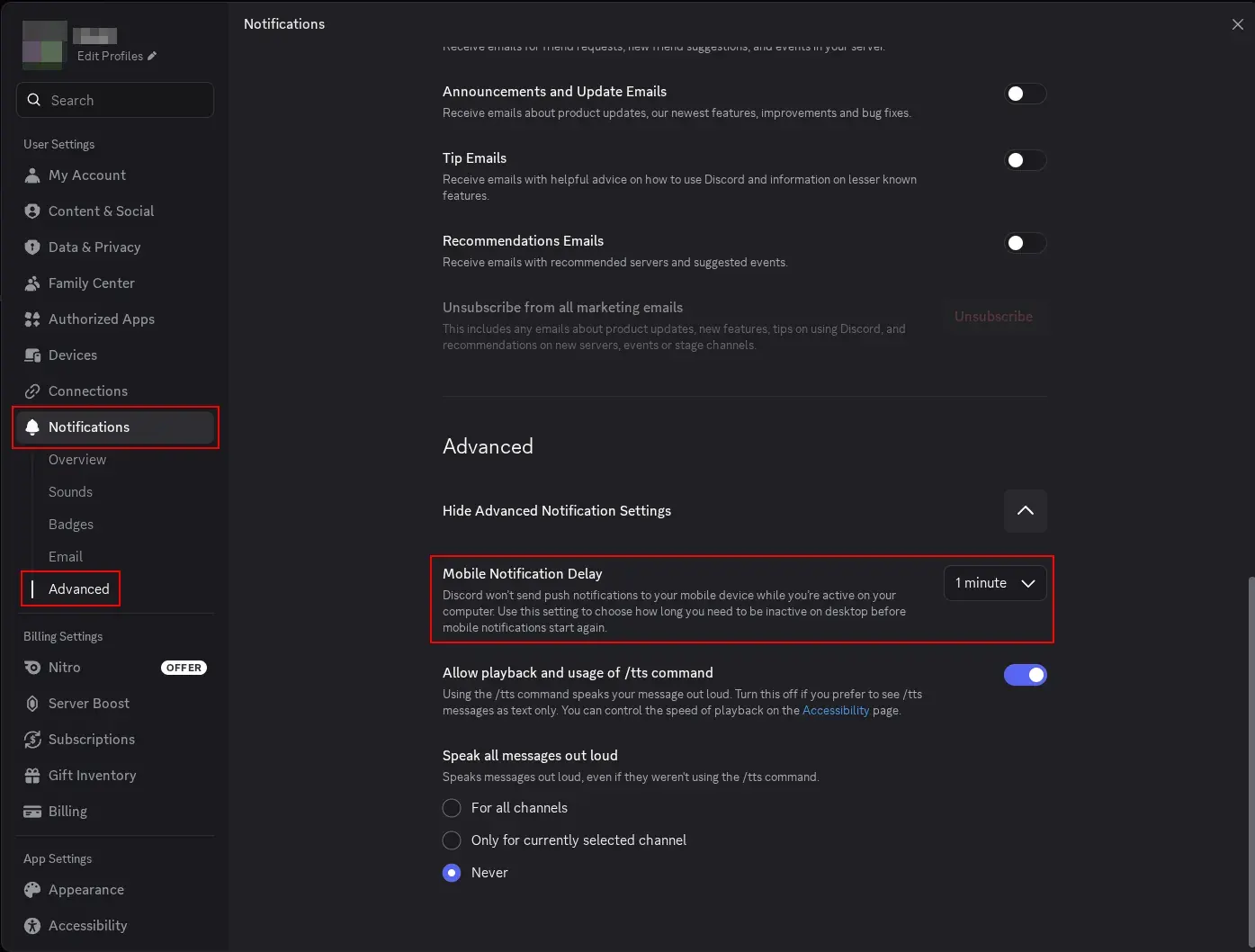
If idle detection is broken on desktop, Discord never switches you to away, so your phone never receives pings. I had this situation for a while and thought something was wrong with the mobile app, until I traced it back to the broken idle detection on the Linux side.
Once you apply the Wayland fix and the status correctly transitions to Idle, the mobile push notifications start working as expected again.
References
- Discord on ArchWiki — Electron/Wayland flags
- Reddit: Discord not idling on Wayland — discussion thread
- Reddit: Workaround comment with Ozone flags
- avery.is-a.dev — Half-baked Discord Linux client (documents the same behavior)
- freedesktop.org — Desktop Entry Specification
Final Thoughts
It’s a small fix — two flags appended to a desktop entry — but the path to finding it was more annoying than it should be. The idle detection breaking silently, with no error, no warning, just a permanently green dot, is the kind of thing that hides in plain sight. The fact that it also breaks smartphone notifications makes it more than just cosmetic.
If you’re on Linux Wayland and Discord has been frustratingly quiet on your phone, this is almost certainly why. Worth a try before you go hunting for anything more exotic.